Showing posts with label Dynamics AX. Show all posts

Saturday, November 11, 2017

Dynamics 365: MACRO OR CONST?

Macros still are supported on Dynamics 365 but now with the VS we can and should use “const” (Constants).
#define.MyMacro("Pankaj");
const str MyConstValue = "Pankaj-Constant";
info(strFmt("%1 - %2",#MyMacro, MyConstValue ));

If you want to use “const” in the same way that we were using before with a Macro file then you should replace the for a “static class”. See the example below:
static class MyConstClass()
{
   static const public str MyConstValue = "Pankaj-Constant";
}

Using the constant class:
str a = MyConstClass::MyConstValue;

It is advisable to use “const” instead of “macro”, and they are number of benefits:
  • ·         IntelliSense in the editor.
  • ·         Support for “Go to definition” in the editor.
  • ·         Full control of the type for the constant.
  • ·         Faster compilation – macros are notorious hard for the compiler to handle.
  • ·         None of the macro idiosyncrasies – like the ability to redefine/override.
Happy DAXing....😊

Monday, November 09, 2015

Limitations Of OData Service in AX 2012

Dear Friends

Those who are familiar with OData may notice that the OData query service has a few limitations. It's important to know these and not make assumptions so that you don't run into any surprises. The limitations are as follows:

No JSON support: The OData protocol supports Atom as well as JSON, but Microsoft Dynamics AX 2012 only supports Atom.

No create, update, or delete: With OData, you can also modify data instead of only reading it, but this feature is not supported in Microsoft Dynamics AX 2012.

No support for query options: OData supports query options that allow you to, for example, select only the top five records, select only a specific entry, or sort the feed; however, this feature is not supported in Microsoft Dynamics AX 2012 and using it will result in an error.

No support for queries with fetch mode 1:n: Using a query that has a data source which has its fetch mode set to 1:n will result in an error in the event log for the Feature Pack release and a warning for the R2 release. The latter will automatically convert the 1:n fetch mode to 1:1, which is the only fetch
mode that is supported.

No support for views: Queries that use views are not supported, and using a view will result in an error.

Happy DAXing.... :)

Thursday, September 04, 2014

System does not support setup 'continuous' of number sequence XXX.

Hi,

Recently i faced this issue related number sequence. I Realized, the issue was that the getNewNum function was called without transaction processing. Please encapsulate your code with in transaction and it will work fine.......... :)

ttsbegin;

[Your Code]

ttscommit;

Happy DAXing......... :)

Monday, August 04, 2014

Maps in AOT (Microsoft Dynamics AX 2012)

Microsoft Dynamics AX 2012 :Maps in AOT

Maps are nothing just an element/object the makes possible to link/associate map fields with fields(same type with different names) in different tables like, I have create a MAP with field (AccountNum) and Same field exist in CustTable and also in VendTable,so I can associate field in CustTable and in VendTable with Maps, so basically  Maps enables to access the fields with different name in different tables.

EXAMPLE:
I have created a Map by navigating to AOT>Data Dictionary>Maps and right click and new and gave it name ‘MapTest’


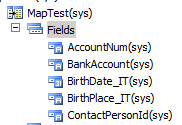
I have created 4 fields in under Fields node in Map (drag and drop from EDT)


Now the next thing I need to do is to associate the fields in map with the fields in different tables, let say I am taking two tables (CustTable and VendTable).


Notice that above, four fields that I have created in Maps also exist in CustTable as well as VendTable with different names.
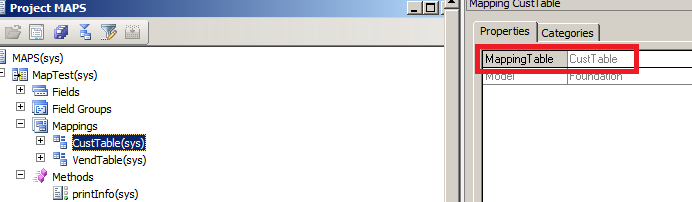
To associate fields, go to Mapping node, right click it and click New mapping, and enter the table that you want to associate in Mapping Table field. Like


And the associate fields with fields in MAP


Now I have created a method called printInfo under method node in Maps, which print the value of the map field AccNumber.

public void printInfo()
{
info(strFmt(“Map : AccountNum :%1″,this.AccNumber));
}

Similiarly I have create same methods under method nodes of CustTable and VendTable which are printing their respective AccountNumber fields


Now finally I have created a job see below I  am not describing every line as I have added comments above the line.


When I run this job see what happens


Happy DAXing......... :)


Friday, August 01, 2014

How to write methods on the list page Form in Ax 2012

How to write methods on the list page Form in Ax 2012


Scenario: I have a menu item that calls some class to do manipulation on the list page Form and I need to refresh the list page now. List pages do not allow writing of code on the Form, as they used interaction class.
Solution: You can write the code on list page buttons by setting DisplayTarget property to “Client” from auto. However after this change, you won’t be able to use this button on the EP, so if you are thinking of using the same list page on the EP and planning to use the same button there, then do not do it. However if you want to use it only in rich client then you are good to do this.
Any ways override the clicked method and call research() of the data source to do this

Happy DAXing.... :)

Thursday, August 08, 2013

TFS integration with Microsoft Dynamics AX 2012 and automated scripts for build and deployment

Hello Friends,

For TFS integration,we have come up with a white paper which details what setup is required for using TFS with AX 2012. The white paper is available on information source -

Change management and TFS integration for multi developer projects

It details steps related to creating and deploying Microsoft Dynamics AX builds on computers connected to a central Microsoft Visual Studio Team Foundation Server (TFS) source control system. The document covers two topologies used by Microsoft Dynamics AX developers: private and shared Application Object Server (AOS) topologies.

Once TFS is setup , it is important to have automated build and deployment process. For this , we have provided powershell scripts.

Build and deploy scripts for Microsoft Dynamics AX 2012

The scripts provide automation for creation and deployment of builds for Microsoft Dynamics AX 2012. The scripts can be used with TFS providing end to end solution for build and deployment. The script performs tasks like sync, creation of TFS label, combining multiple source XPOs to single XPO, validating if build is healthy, etc. These scripts can also work with non-TFS version control where it provides all functionality except the one related to TFS.

Following scenarios are covered -

1. Creating a build – A Microsoft Dynamics AX build is created from specific versions of source files (XPO files, Visual Studio projects, and label files) in the TFS central repository. Source files that share a common label constitute a specific build of a Microsoft Dynamics AX model or application. Output of a build would be model file(s).

2. Deploying a build – Developer(s) should be able to deploy model file(s) (generated from build process or manually) in Ax installation(s). These scripts require some configuration files and parameters which are explained in detail in the above white paper.

Happy DAXing........ :)

Source : MSDN Blog by Mudit Mittal

Friday, July 05, 2013

How to Add summary fields of the FastTab in AX2012?

Hello Friends,

To add a field value to the summary fields of the FastTab, you use the FastTabSummary property of the control.

Note: The FastTabSummary property does not appear on all controls. For example, the reference group control does not include the FastTabSummary property.

To specify whether a field value appears in the summary fields, click the control that has the value that you want to display in the summary and then click one of the following values.

FastTabSummary
Description
Auto
The default value. The field value is added to the summary fields for the first five fields that are members of the AutoSummary field group of the table.
No
The field value does not appear in summary fields of the FastTab.
Yes
Adds the value that appears in the control to the summary fields of the FastTab.


Happy DAXing….. J

Tuesday, May 07, 2013

Data Migration Framework (DMF) AX 2012


Hello Friends,

The Data Migration Framework for Microsoft Dynamics AX 2012 is an extension that helps you migrate data into Microsoft Dynamics AX. Examples of the data that you can migrate include master data, open stock, and balances.

The Data Migration Framework is available from the InformationSource services download page.

The Beta 2 version of the Data Migration Framework includes support for the following new features:

  • ODBC connections as a data source.
  • Microsoft Dynamics AX databases as a data source. You can now export and import Microsoft Dynamics AX, and copy company information by using Data Migration Framework entities.
  • Direct table and composite entity types.  
    • A direct table entity enables you to migrate data from a source to a target Microsoft Dynamics AX table directly, without going through a staging table or applying any business logic.Unlike other entities, data cannot be pushed from one source table to multiple target tables. The direct table entity must be a one to one mapping from source to target.
    • A composite entity groups multiple related entities together. An example of a composite entity is a Sales Order and Sales Line entities combined together.
    • Parallel execution of threads to move data from staging to target tables.
  • Using the Data Migration Framework as a service. The framework can now be executed by external applications.
  • Error-handling enhancements. The Data Migration Framework provides more detailed logs, and can skip rows that contain errors.
  • Number sequence support.
  • Remote installations of Microsoft SQL Server Integration Services. It is no longer necessary to install Integration Services on the same computer as the Application Object Server (AOS).

Please visit following links for more information.


Happy DAXing..........

Friday, May 03, 2013

How to Print welcome message on Start-up of AX 2012 Client ?


Hello Friends,

Today I will demonstrate you that How to Print welcome message on AX rich & development client startup. Follow below steps when you want to execute some business logic in AX Startup.

  • Open AOT
  • Go to Classes -> Info
  • Open the StartupPost() method
  • Type following Code there


void startupPost()
{
     //your code goes here
    box::info("Welcome to Dynamics AX 2012 world!!!!");
}

Happy DAXing……. J


Thursday, May 02, 2013

Regular Expression in AX 2012


How to use the regular expression to validate the number string

static void TextBuffer_RegularExpression(Args _args)
{
    TextBuffer txt = new TextBuffer();
    str msg = "9876543210";

    txt.setText(msg);

    // activate regular expr in search
    txt.regularExpressions(true);

    // Regular expression to validate only digits
    if (txt.find("^[0-9]+$"))
    {
        info("string contains only numbers");
    }
    else
    {
        info("string contains Alphanumeric characters.");
    }
}

Happy DAXing...... :)

Friday, April 19, 2013

Full Text Index in AX2012


Hello Friends,

A full text index contains location information about each significant word in a string field of a table. Full text index queries can run more efficiently and complete much sooner. These are queries that search for words that are embedded in the middle of string fields in the table. Full text index can use this Index on Memo fields and also Extended data type.

A regular index on a long string field can help a query complete quickly only if the query searches for the word that is at the start of the string field. In X++ SQL this is done with the like keyword and the * wildcard character, such as in the code phrase like "*Dynamics*".

This Post describes how to create a query that uses a full text index in Microsoft Dynamics AX 2012. A full text index can improve the speed of queries that search for words that are embedded in string and memo fields on tables.

The QueryRange class has a rangeType method. You can direct a QueryRange object to use the full text index by passing the QueryRangeType::FullText enum value to the rangeType method.

Note :
1.       If the value you are searching for is a two word phrase with a space between the words, the system treats the space as a Boolean OR.
2.       X++ select statements cannot use a full text index.

Let me explain full text index with an example. Create a new table as shown below. In this example, my table Name is FullTextSampleTable. Once you are done with your table, Go to FullTextIndex Node >> Right click and create a new FullTextIndex. Rename it to FullTextIndex. Drag and drop TopicName field from the fields to the newly created index. Now table with index should look like below.

I have added few records for testing purpose as shown below.

The following X++ Job uses a full text index that exists on a table and field that it queries.


Hope it will help you to understand Full Text Index in Dynamics AX.........

Happy DAXing...... :)

Thursday, April 18, 2013

Fixed Field Relation in AX 2012


Hello Friends,

This post we continue with Fixed Field Relation in Dynamics AX 2012. We use Fixed Field relation when we have 1:N relation. On certain condition one of the relation become active & other will remain deactivate. Let me use the same theme as MSDN - Clothing.

Lets say you have 4 tables

1. ChildernClothesTable
2. MenClothesTable
3. WomenClothesTable
4. ClothesOrdersTable

Create BaseEnum CollectionTypeId with the following elements:

0 - Men
1 - Women
2 - Children

Create Extended DataType CollectionTypeEDT of BaseEnum CollectionTypeId. Now use this EDT in your ClothesTable.

ClothesOrdersTable has the following fields:

1. ClotheId,
2. Name ,
3. CollectionTypeId and
4. Qty 

ChildernClothesTable, MenClothesTable and WomenClothesTable has the following fields:
1. ClotheId,
2. Name 

Case 1:

On ClothesOrdersTable we create a new relation to MenClothesTable and specify the follwing two relations:

1. Normal = ClotheId to ClotheId and

2. Fixed Field ClothesOrdersTable.CollecTionTypeId = 0 and SourceEDT = CollectionTypeEDT


This shows that the lookup to the MenClothesTable should show all clothes with the same ClotheId (Define in Normal Relation) AND clotheId will only bring from MenClothesTable as we are using type Men (Define in Fixed Field Relation) because we want to activate relationship for mens' clothes. We use 0 because Men is element 0 in the Enum.

Case 2:


On ClothesOrdersTable we create a new relation to WomenClothesTable and specify the follwing two relations:

1. Normal = ClotheId to ClotheId and

2. Fixed Field ClothesOrdersTable.CollecTionTypeId = 1 and SourceEDT = CollectionTypeEDT


This shows that the lookup to the WomenClothesTable should show all clothes with the same ClotheId (Define in Normal Relation) AND clotheId will only bring from WomenClothesTable as we are using type Women (Define in Fixed Field Relation) because we want to activate relationship for Womens' clothes. We use 1 because Women is element 1 in the Enum.

Case 3:


On ClothesOrdersTable we create a new relation to ChildernClothesTable and specify the follwing two relations:

1. Normal = ClotheId to ClotheId and

2. Fixed Field ClothesOrdersTable.CollecTionTypeId = 2 and SourceEDT = CollectionTypeEDT


This shows that the lookup to the ChildernClothesTable should show all clothes with the same ClotheId (Define in Normal Relation) AND clotheId will only bring from ChildernClothesTable as we are using type Childern (Define in Fixed Field Relation) because we want to activate relationship for Childern clothes. We use 2 because Childern is element 2 in the Enum.

Hope it will help you to understand Fixed field Relation in Dynamics AX.........

Happy DAXing...... :)

Sample XPO Link :
https://docs.google.com/file/d/0B7UC6CtWeBQTWnVSWUNvUEkyZVU/edit?usp=sharing

Tuesday, April 16, 2013

Related Fixed Field Relation in AX 2012


HI friends,


It's not that hard to understand Relation in Dynamics AX 2012. Let me use the same theme as MSDN - Clothing.

Lets say you have 4 tables

1. ClothesTable
2. MenClothesOrder
3. WomenClothesOrder
4. ChildernClothesOrder

Create BaseEnum CollectionTypeId with the following elements:

0 - Men
1 - Women
2 - Children

Create Extended DataType CollectionTypeEDT of BaseEnum CollectionTypeId. Now use this EDT in your ClothesTable.

ClothesTable has the following fields:

1. ClotheId,
2. Name and
3. CollectionTypeId

MenClothesOrder, WomenClothesOrder and ChildernClothesOrder has the following fields:
1. OrderId,
2. ClotheId,
3. Qty

Case 1:

On MenClothesOrder we create a new relation to ClothesTable and specify the follwing two relations:

1. Normal = ClotheId to ClotheId and

2. Related Fixed Field 0 = ClothesTable.CollecTionTypeId. and SourceEDT = CollectionTypeEDT


This shows that the lookup to the clothes table should show only clothes with the same ClotheId (Define in Normal Relation) AND clothes that are of type Men (Define in Related Fixed Field Relation) because the our table deals with order for mens' clothes. We use 0 because Men is element 0 in the Enum.

Case 2:


On WomenClothesOrder we create a new relation to ClothesTable and specify the follwing two relations:

1. Normal = ClotheId to ClotheId and

2. Related Fixed Field 1 = ClothesTable.CollecTionTypeId. and SourceEDT = CollectionTypeEDT


This shows that the lookup to the clothes table should show only clothes with the same ClotheId (Define in Normal Relation) AND clothes that are of type Women (Define in Related Fixed Field Relation) because the our table deals with order for Womens' clothes. We use 1 because Women is element 1 in the Enum.

Case 3:


On ChildernClothesOrder we create a new relation to ClothesTable and specify the follwing two relations:

1. Normal = ClotheId to ClotheId and

2. Related Fixed Field 2 = ClothesTable.CollecTionTypeId. and SourceEDT = CollectionTypeEDT


This shows that the lookup to the clothes table should show only clothes with the same ClotheId (Define in Normal Relation) AND clothes that are of type Childern (Define in Related Fixed Field Relation) because the our table deals with order for Childern's clothes. We use 2 because Childern is element 2 in the Enum.

Hope it will help you to understand Related Fixed field Relation in Dynamics AX.........

Happy DAXing...... :)

Sample XPO Link :
https://docs.google.com/file/d/0B7UC6CtWeBQTeW9MY0hqZE5BejQ/edit?usp=sharing


Thursday, March 28, 2013

Export and Import a Model In Dynamics AX 2012


Export an .axmodel file (Windows PowerShell)

  1. On the Start menu, point to All Programs, point to Administrative Tools, and then click Microsoft Dynamics AX Management Shell.
  2. At the Windows PowerShell command prompt, PS C:\>, type the following command, and then press ENTER.
    Export Command Syntax :
    Export-AXModel –Model <name> -File <Filename.axmodel>
    Example : 
    Export-AXModel –Model SecurityModel -File C:\SecurityModel.axmodel


Import an .axmodel file (Windows PowerShell)
    1. On the Start menu, point to All Programs, point to Administrative Tools, and then click Microsoft Dynamics AX Management Shell.
    2. At the Windows PowerShell command prompt, PS C:\>, type the following command, and then press ENTER.
    Import Command Syntax :
    Install-AXModel -File <Filename.axmodel> -Details
    Exmaple :
    Install-AXModel -File C:\SecurityModel.axmodel -Details

Tuesday, March 26, 2013

How to Filter records in form by X++ code

The standard filter functionality in Ax forms is a neat and powerful feature.
Using this filter functionality in your code is something you'll definitely use at some point in time as a programmer.

Although it's possible to do it in a single line of code, I prefer a 3 step solution. That way it's more flexible.
Let me show you by example. We'll filter the customers records in form CustTable, only showing customers with currency USD.

Step 1: Declare a class variable
In the ClassDeclaration method of the form, define a range.

QueryBuildRange CurrencyQBR;

Step 2: Instantiate the new range.
In the init method on the datasource of the form, you assign the range to a specific field (after the super call).

public void init()
{
super();

CurrencyQBR = this.query().dataSourceName('CustTable').addRange(fieldnum(CustTable,Currency));
}

Step 3: In the last step, you assign a value to the range.
This is done in the executeQuery method on the same datasource of the form. Before the super call. Like this:

public void executeQuery()
{ ;

CurrencyQBR.value(queryvalue('USD'));

super();
}

You're done! When you open the form, your customer records are filtered, you only get the customers with currencycode USD set up.


Like I said in the intro of this post, this can be done in one line of code as well.
In the init method of the form datasource, after the super call, place this code:

this.query().dataSourceName('CustTable').addRange(fieldnum(CustTable,Currency)).value(queryvalue('USD'));
But this way, it's fixed. If you choose the 3 step method, you could for example use a variable in the range value. The way to go would be to place an input field on your form, get the value from it and supply it in the executeQuery method.
For example like this:
public void executeQuery()
{ ;

CurrencyQBR.value(queryvalue(MyInputField.text()));

super();
}

Just make sure the executeQuery method is executed, thus applying the desired filter (maybe be using a button on your form to activate it).
Of course it's possible to combine multiple querybuildranges.

Monday, March 25, 2013

AX2012 R2 Setup Step by Step....


Dear Friends,


As you know the much awaited AX 2012 R2 is launched so Here we have a install/upgrade overview on AX 2012 R2 in just 24 clicks :

1) Start the Setup Program.

 2) Click "Microsoft Dynamics AX Components" under Install.


 3) Click Next.


 4) Select "I accept the license terms" *.


 5) Choose Appropriate Option.


 6) Processing will start.


 7) Choose "Add or modify components".

 8) Select Options to install/upgrade.
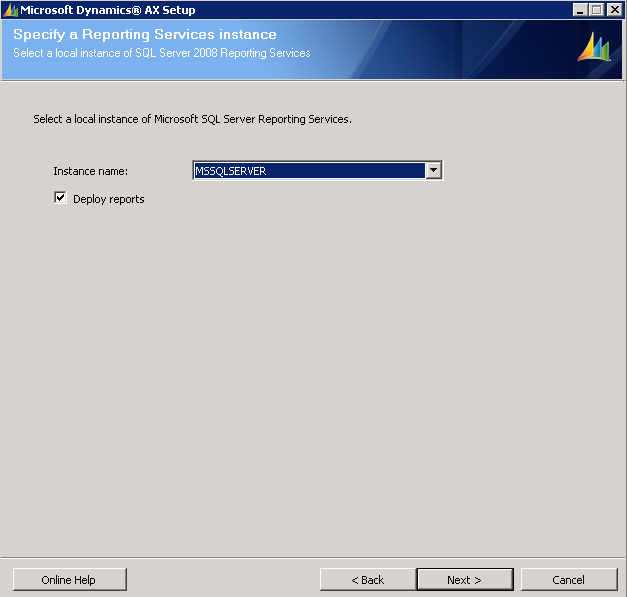
 9) Review the Errors/warnings and click on "Configure" check box for the applicable errors. and click "Configure".

 10) Click "Start" to start configuring components as per AX needs.

 11) Select "Configure existing database (for upgrade scenarios)".

 12) Specify your existing databases.

 13) Choose models to upgrade.

 14) Specify the "Temp" location for setup files.

 15) Specify the SSAS details.

 16) Specify credentials (we just have used the dummy account) for learning purpose only. Use your AD authenticated account details.

 17) Specify .net BC account (if its not already there in AX)

 18) Choose your Languages (en-US) in this demo.

 19) Specify Data Crawler Account details.


 20) SSRS Database details.


 21) User Account for SSRS Access. Click Next

23) Review prerequisite validation & Click Next.


23) Click Install.

24) Verify the installation.


Enjoy DAXing......... 

Delete caches in Dynamics 365 F&O

In Dynamics 365 Finance and Operations (D365 F&O), clearing the Application Object Tree (AOT) cache usually involves running specific ut...